Every Happybook account can publish its notebooks as a password-protected OPDS catalog, the
standard "bookshelf over HTTP" that e-readers speak. Here's the full setup with KOReader;
any OPDS 1.2 client works the same way.
1. Turn on the catalog in Happybook
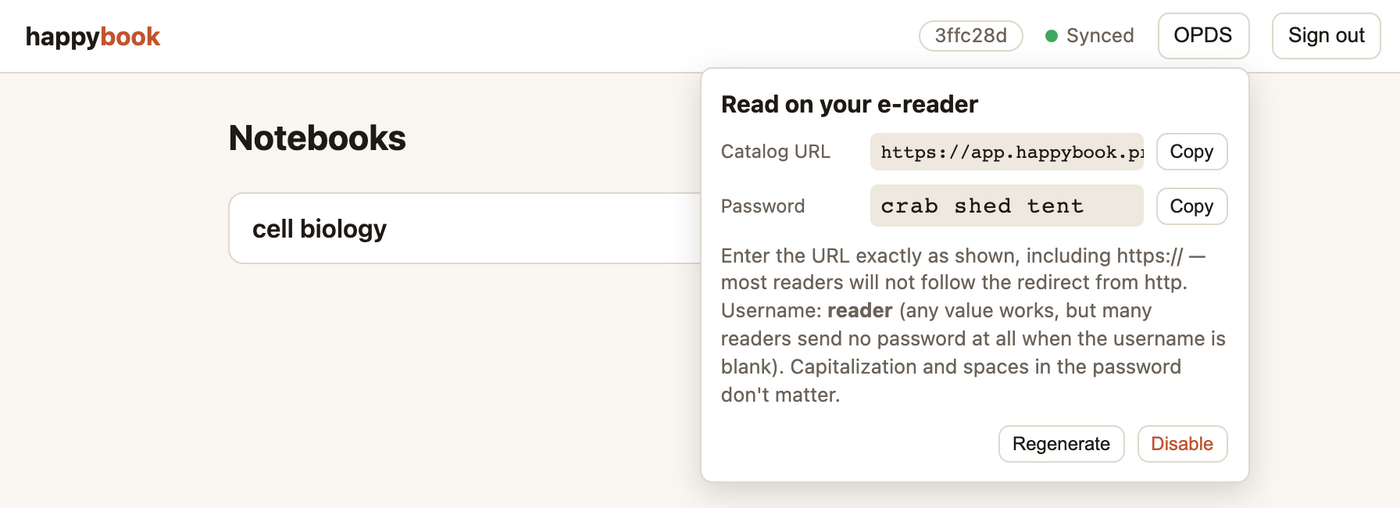
Open app.happybook.proc.io, sign in, and press
the OPDS button in the header. Press Enable OPDS catalog
and Happybook generates your catalog password: three short words, all lowercase.
The OPDS panel shows your catalog URL and password, with copy buttons.
2. Find the OPDS browser in KOReader
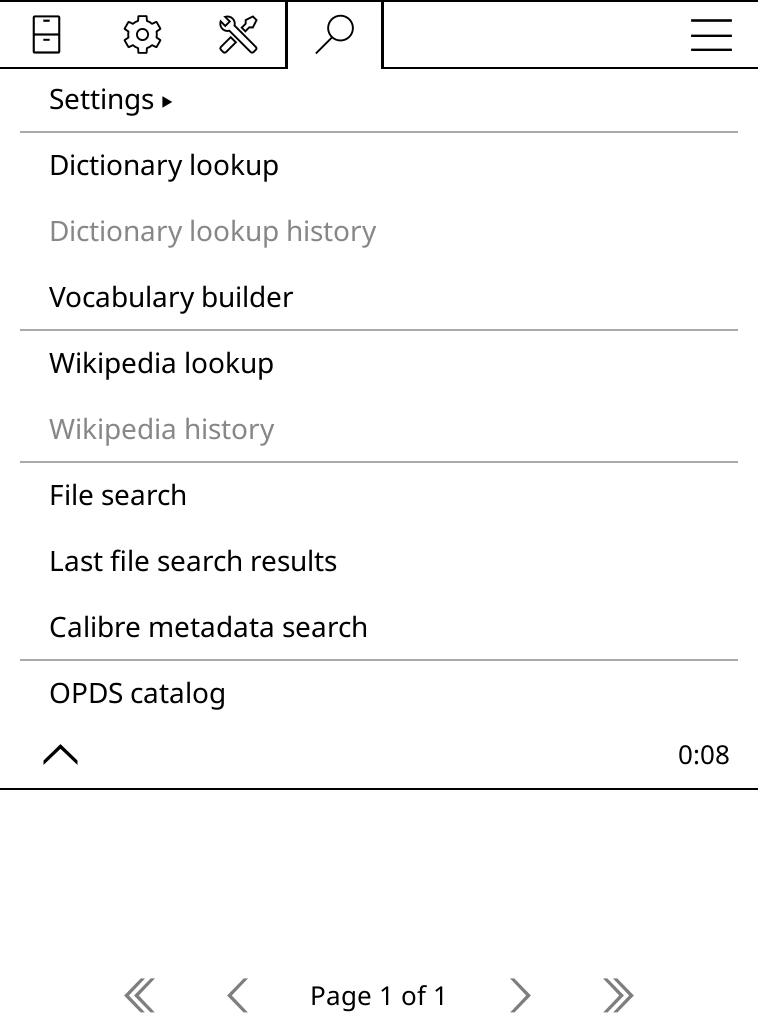
On the device, open the file browser, tap the top of the screen for the menu, and pick the
magnifying-glass tab. OPDS catalog is at the bottom of that list.
File browser → magnifier tab → OPDS catalog.
3. Add Happybook as a catalog
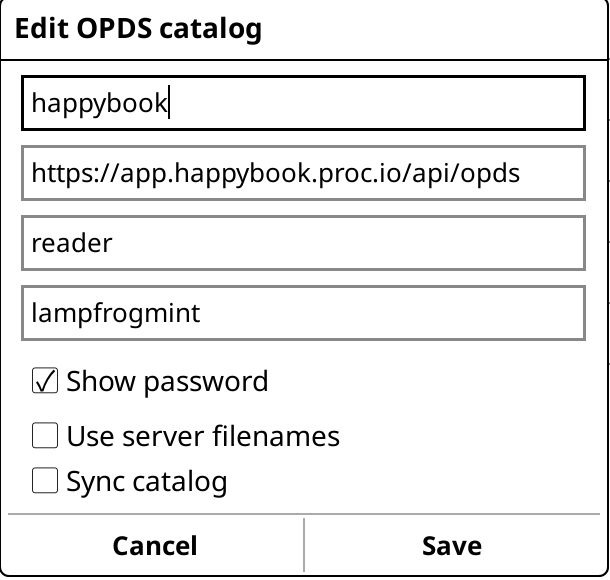
In the OPDS screen, tap the menu (top-left) → Add catalog, and fill in the
form:
Catalog name
anything you like, e.g. happybook
Catalog URL
https://app.happybook.proc.io/api/opds
Username
reader — any value, but not blank
Password
the three words from step 1
The catalog form filled in. Check "Show password" to see what you typed.
Three details that matter on e-readers:
Type the URL exactly, starting with https:// — most readers won't follow the redirect from plain http.
The username can be anything except empty: many readers (KOReader included) send no password at all when the username field is blank.
The password is forgiving: capitalization and spaces don't matter, so Lamp Frog Mint works fine. Happybook also answers at /api/odps, in case that transposition sneaks in.
4. Browse and download
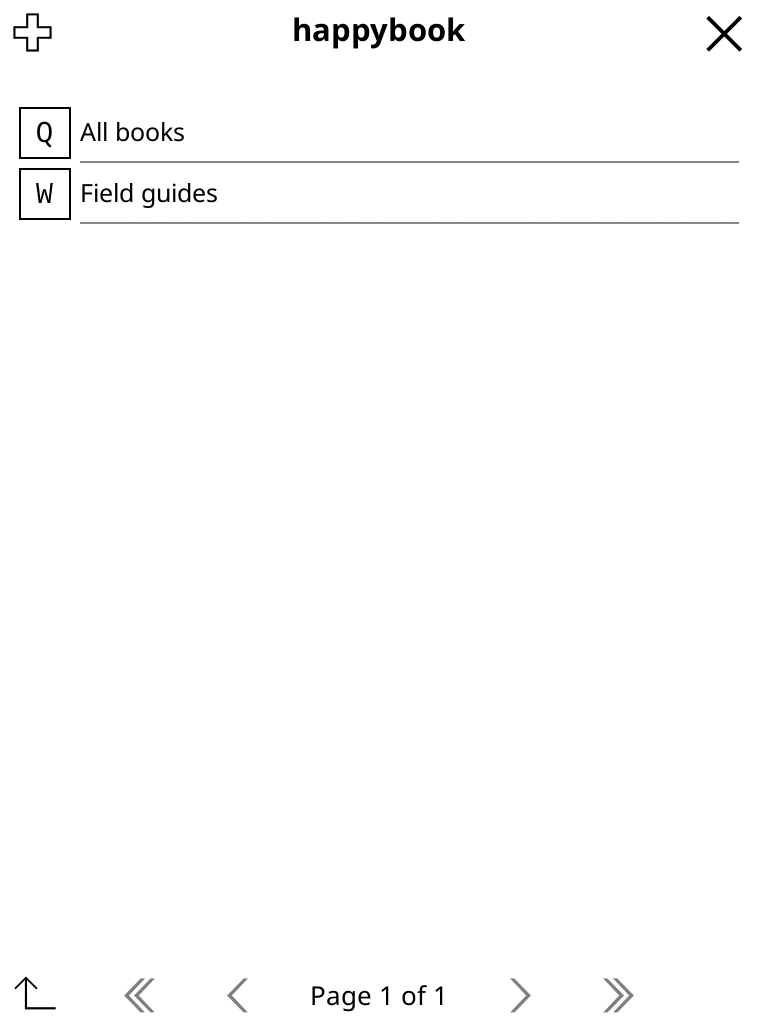
Your catalog lists All books plus one section per notebook. Tap a book,
press the PDF or EPUB download button, and read it on the
spot. Highlights you make in KOReader stay on the device; the books themselves stay in
sync with what's in your notebooks.
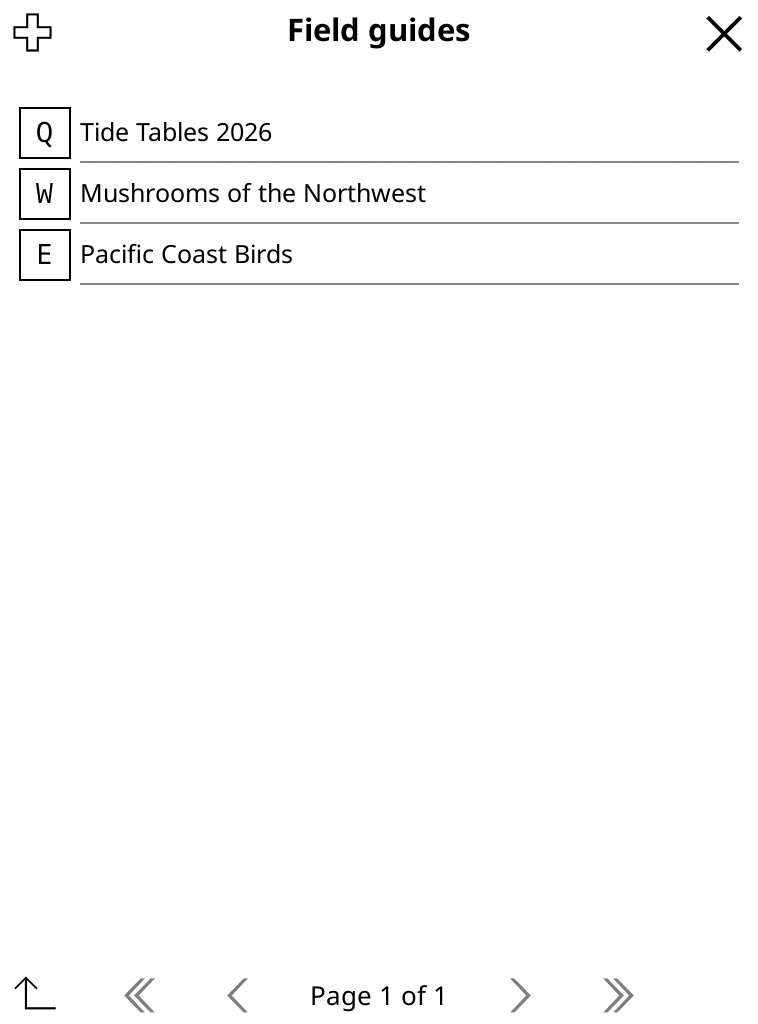
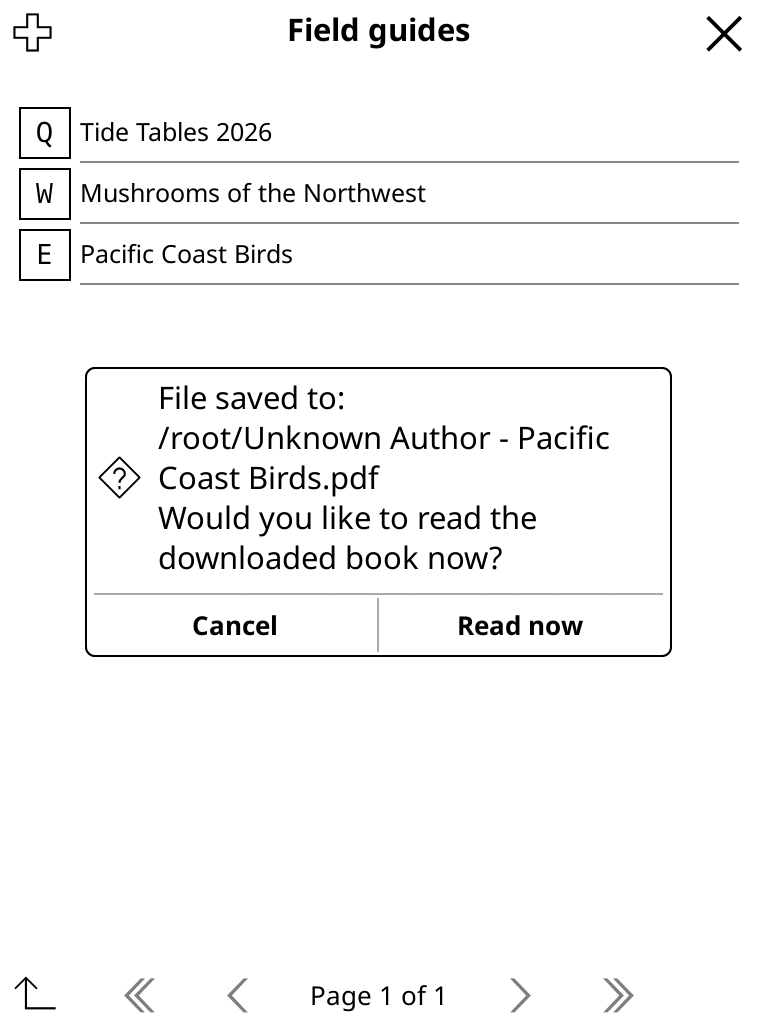
The catalog root: every notebook is a shelf.Inside a notebook.Downloaded straight to the device.Reading a notebook book in KOReader.
5. Sync your reading progress (optional)
Happybook also speaks KOReader's progress-sync protocol, so the page you stop on follows
you between the device and the web reader. In Happybook, press
Progress in the header and enable progress sync; you get a server URL, a
username, and a password. Then in KOReader, open the top menu's tools tab →
Progress sync → Custom sync server and enter the URL:
https://app.happybook.proc.io/api/kosync
Back in the Progress sync menu, choose Login (not Register: accounts come
from Happybook) and enter the username and password. Unlike the catalog password, this one
must be typed exactly: lowercase, no spaces. The device hashes what you type, so the
server never sees your keystrokes and cannot forgive them.
Leave Document matching method on Binary (the default). Matching works for books downloaded from your Happybook catalog, or any byte-identical copy of them.
PDFs sync the exact page in both directions. EPUBs sync from KOReader to the web precisely; coming back, the device learns how far you read as a percentage but stays on its own last spot, since KOReader positions are engine-specific.
Progress sync between two KOReader devices through Happybook works for any book, even ones not in your notebooks.
Try it without an account
The screenshots above use our live demo catalog. Point any OPDS client at
https://app.happybook.proc.io/api/opds with username reader and
password lamp frog mint to browse it yourself.
Other readers
The catalog is plain OPDS 1.2 over HTTP Basic auth, so Plato, Foliate, Thorium, Moon+
Reader, and the built-in OPDS browsers on PocketBook and Onyx devices all work the same
way: catalog URL, any username, your password.